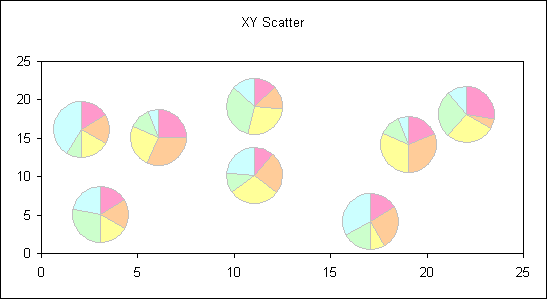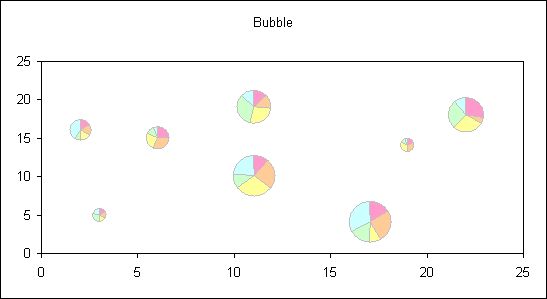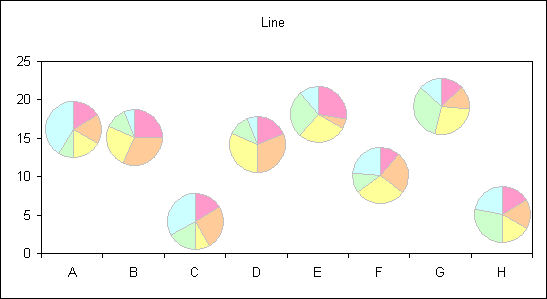


This is an example of using a
pie chart as the custom marker within another chart.
You need to create a small
pie chart that will be used as the custom marker.
Format the chart area to have no fill pattern and no border.
Format the slices as required.
To apply the
chart as a data marker we first need to create a picture copy of
it. This can be done manually within Excel. Hold the Shift key
whilst selecting the pie chart.
Then whilst
still holding the shift key click the Edit menu.
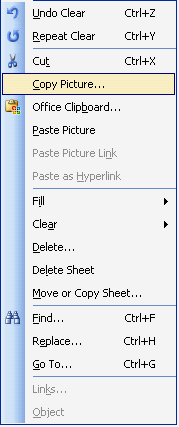
Notice the appearance of a new menu item, Copy Picture.
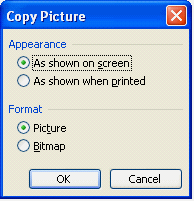
Selecting Copy
Picture... will display a dialog that allows you to set some
characteristics of the image that will be created on the
clipboard.
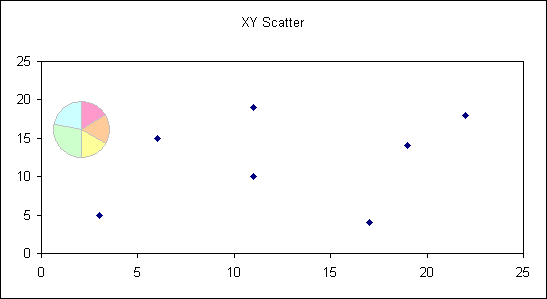
With the data
point selected you can paste the pie chart using CTRL+V
To do this for your whole
chart you will need to change the data relating to the pie chart
and the repeat the process of copying, selecting data point and
pasting.
You can use VBA code to
automate this process, which can be especially useful if the
chart contains a lot of points or the data is changed at some
point. As the pie data markers are static views of the data and
are will not update with the data.
Sub PieMarkers()
Dim chtMarker As
Chart
Dim chtMain As
Chart
Dim intPoint As
Integer
Dim rngRow As
Range
Dim lngPointIndex
As Long
Application.ScreenUpdating = False
' reference to pie chart
Set chtMarker =
ActiveSheet.ChartObjects("chtPieMarker").Chart
' reference to chart that pie
markers will be applied to
Set chtMain =
ActiveSheet.ChartObjects(1).Chart
' pie chart data which will be
processed by rows
For Each rngRow
In Range("F4:J11").Rows
'
assign new values to pie chart
chtMarker.SeriesCollection(1).Values
= rngRow
' copy
pie
chtMarker.Parent.CopyPicture
xlScreen, xlPicture
' paste
to appropriate data point
lngPointIndex = lngPointIndex + 1
chtMain.SeriesCollection(1).Points(lngPointIndex).Paste
Next
' release objects
Set chtMarker =
Nothing
Set chtMain =
Nothing
Application.ScreenUpdating = False
End Sub
The same technique can be
applied to a Bubble chart where the size of the pie is related
to the bubble size value.
It can also be
applied to a line chart.
The code and chart examples
are contained within this workbook.